
Web Interface
The Adamo web app at operate.adamohq.com is where you view video streams, control robots, and manage your fleet.
Logging In
Section titled “Logging In”Go to operate.adamohq.com and sign in with Google. If you belong to multiple organizations, you’ll be prompted to select one.
Robot Grid
Section titled “Robot Grid”After logging in, you’ll see a grid of your robots. Each card shows a live video thumbnail, the robot name, and a status badge (LIVE or IDLE). A search bar filters robots by name.
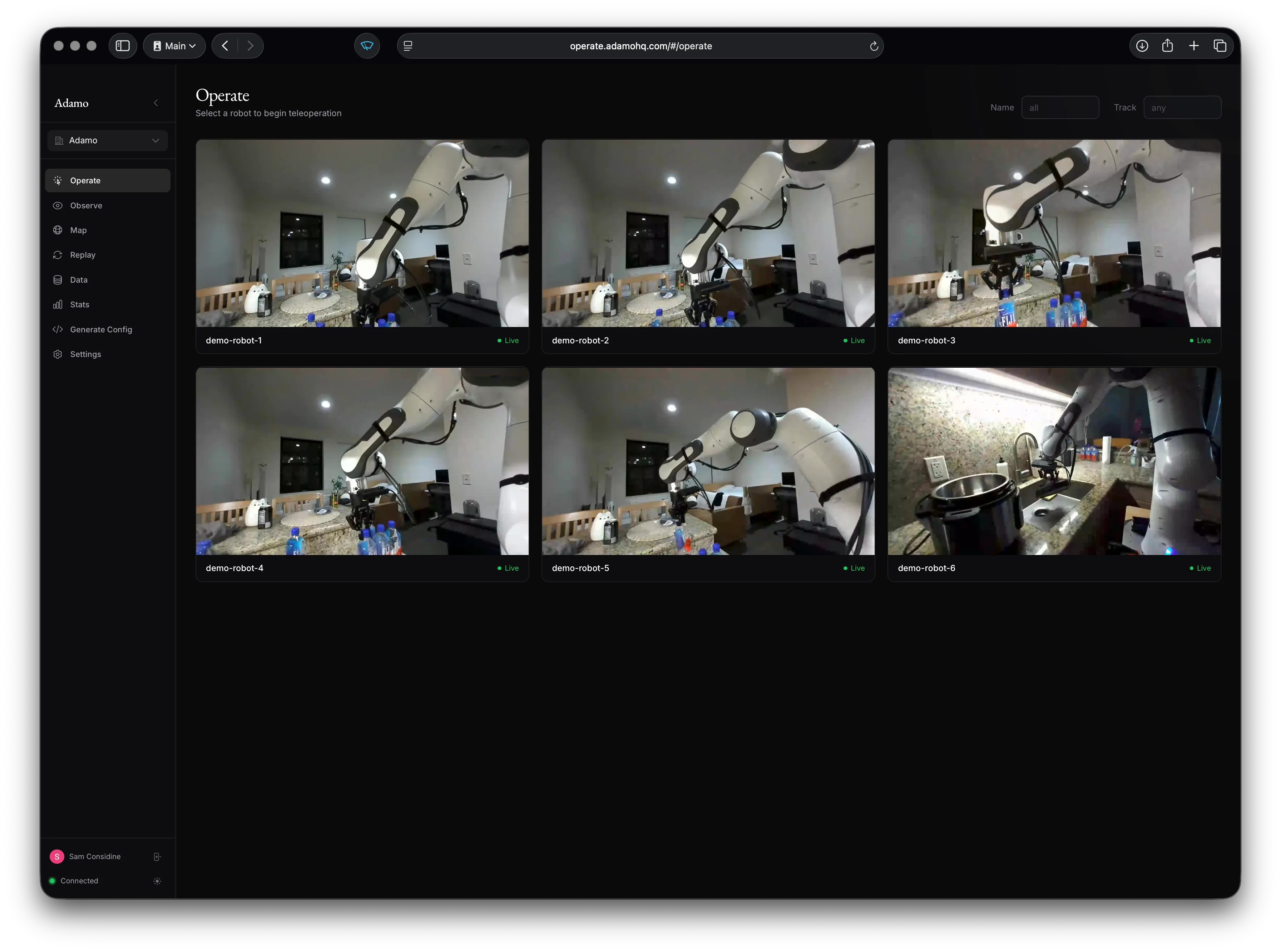
Click a robot to enter the teleoperation view.
Teleoperation View
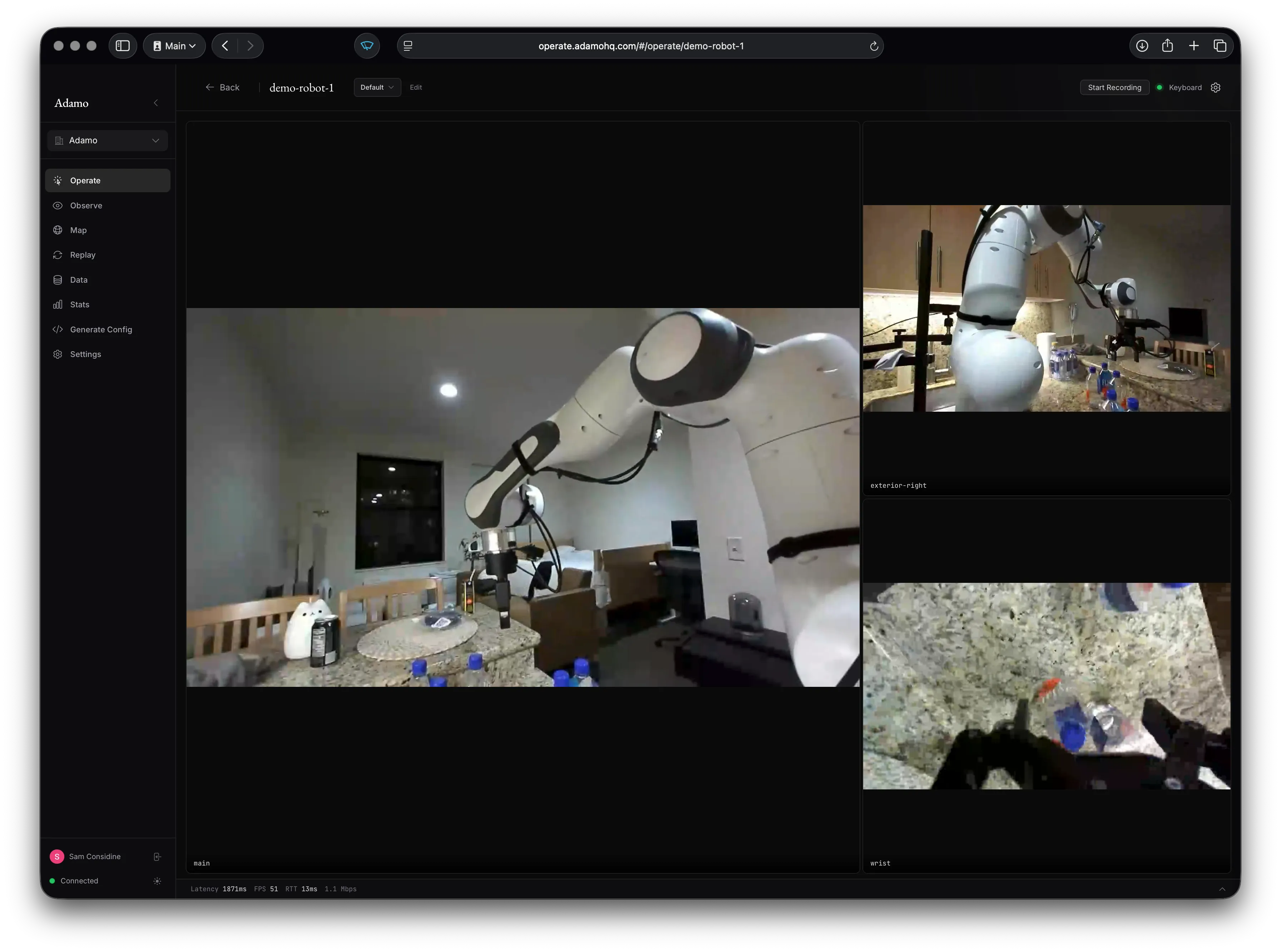
Section titled “Teleoperation View”This is where you operate a robot. The main area is a camera grid showing all active video streams.
Video Streams
Section titled “Video Streams”Video streams display in a configurable grid layout. If the robot has multiple tracks (e.g., “front”, “rear”, “depth”), they all appear simultaneously. Lidar tracks render as interactive 3D point clouds instead of video.
Stereo / VR
Section titled “Stereo / VR”Stereo video tracks have a “View Stereo” button that launches an immersive WebXR VR view. Head pose and VR controller positions are tracked and forwarded to the robot as control topics (see Control).
Control Panel
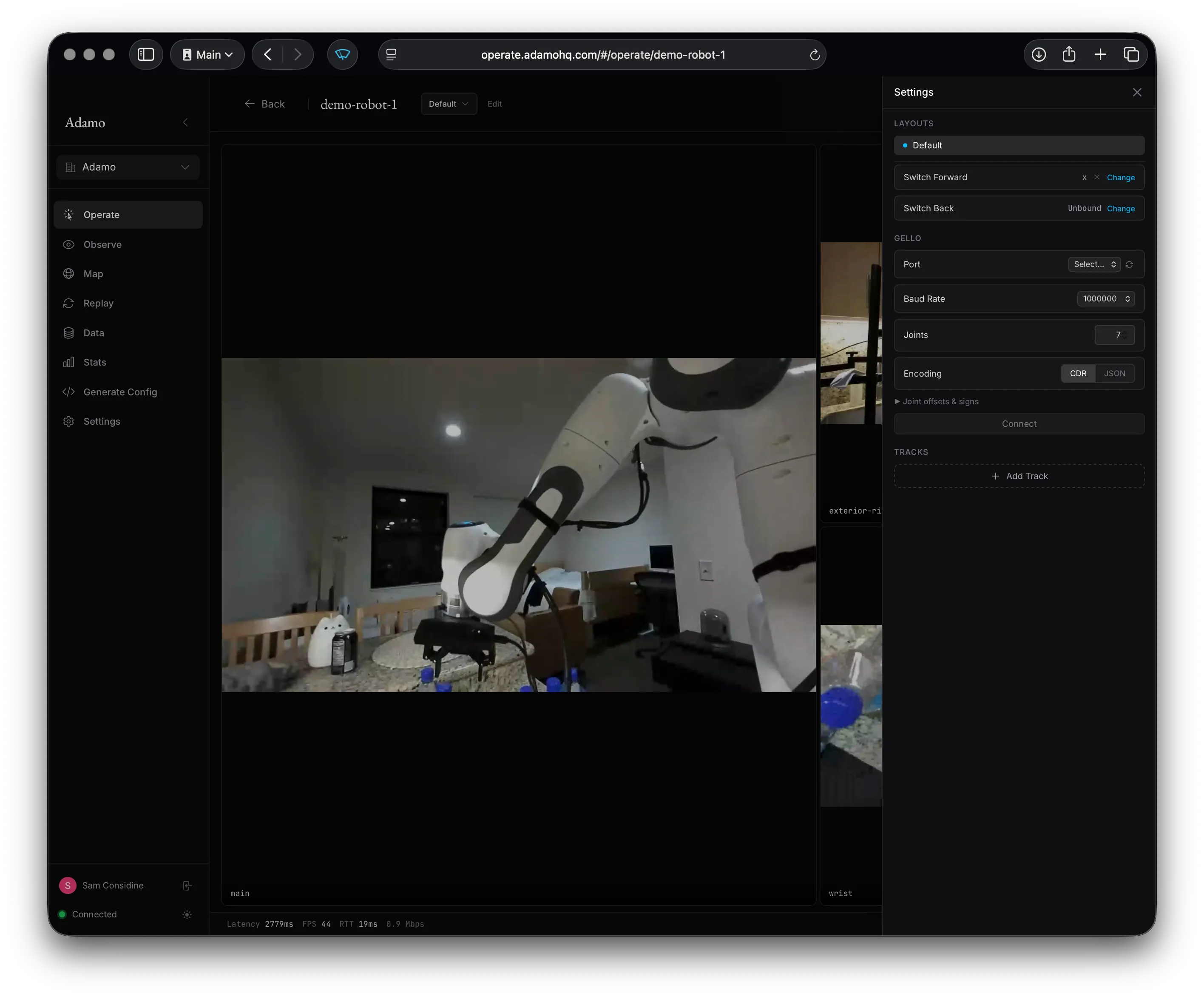
Section titled “Control Panel”A collapsible panel at the bottom shows stream stats (latency, FPS, RTT, bitrate) and input method status. Hover the bar-chart icon for the full latency breakdown. Expand the panel for the live robot log stream (lines published via robot.log(...) in the SDKs) and to switch between input methods (Gamepad or GELLO).
If the robot streams a microphone track (see Streaming Audio), the operator plays it automatically. Browsers block audio autoplay, so nothing is heard until your first click or keypress on the page; entering VR counts as that gesture in the stereo view. Robots without an audio track are silently skipped — audio never delays or interferes with video.
The speaker button on the camera grid opens a volume slider and a mute button for the robot’s audio, plus a track picker when the robot has more than one audio track.
To talk to people near the robot, turn on the microphone button next to them. Your browser asks for microphone access the first time, and the robot can then play your voice (see Playing audio on a speaker). The microphone is off until you turn it on. Settings has the same switch and volume under Audio, and remembers them.
The control panel shows an audio chip (e.g. Audio 48k stereo) that turns amber
with a · N gaps count when packets are lost, and the latency breakdown (the
bar-chart hover) includes an Audio section with format, recovered packets, gaps,
and decode queue depth.
Explicit control ownership
Section titled “Explicit control ownership”Organization owners and admins can enable Settings → Operator Control → Require explicit Take Control. The setting applies to every operator in the organization and is stored with the organization rather than in one browser.
When enabled, opening a robot starts in view-only mode. Press Take Control before operating the robot. The current holder is shown in the teleoperation header; the holder can press Release Control to return to view-only mode. Taking control from another operator uses the same ownership mechanism.
The web app also publishes an ownership lease for robot-side gating. See Explicit control ownership for the topic, payload, heartbeat, and receiver requirements.
Adding Tracks
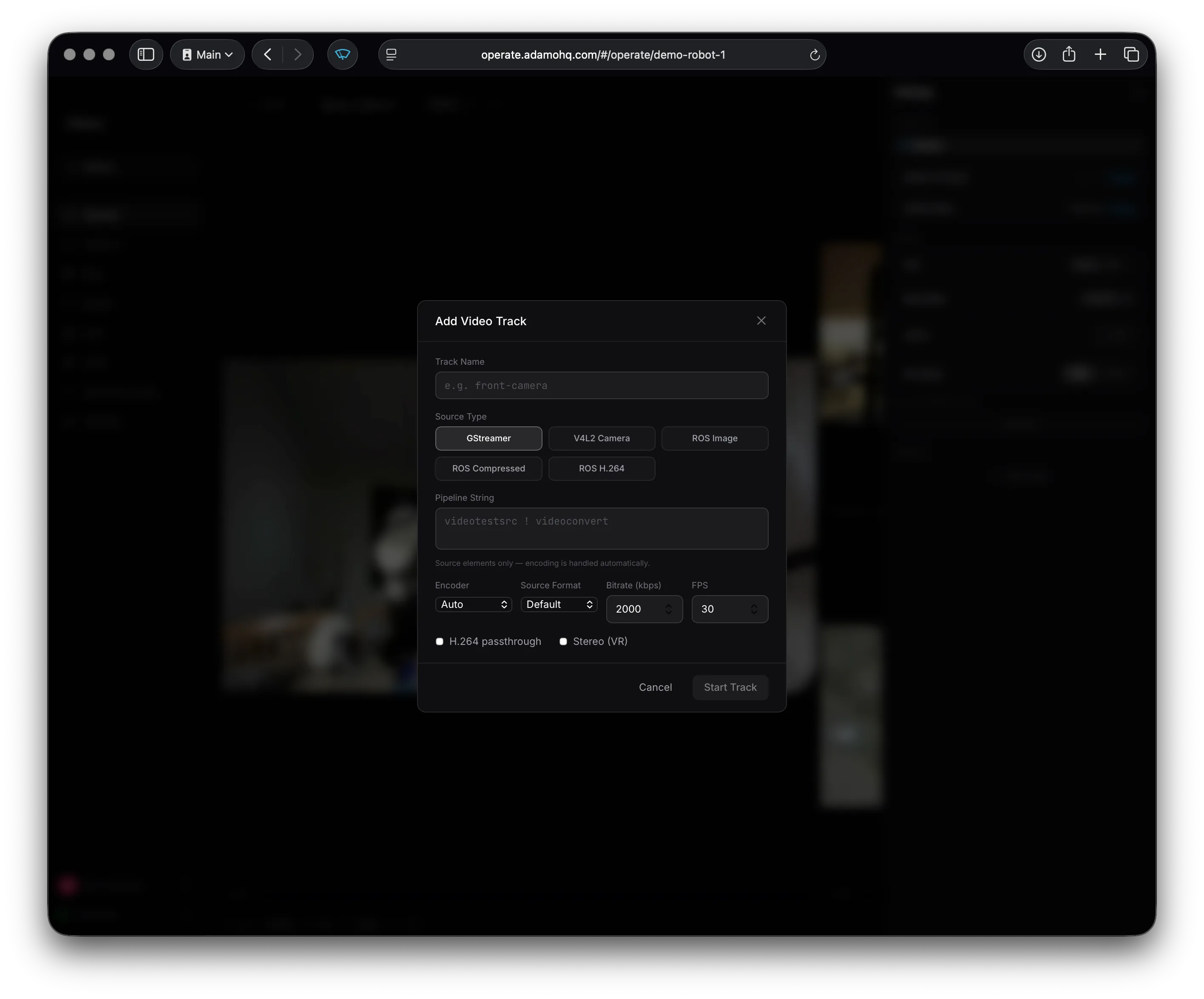
Section titled “Adding Tracks”Click “Add Track” to dynamically start a new video track on the robot without editing the config file. You can configure the source type, encoder, bitrate, and FPS from the dialog.
Layouts
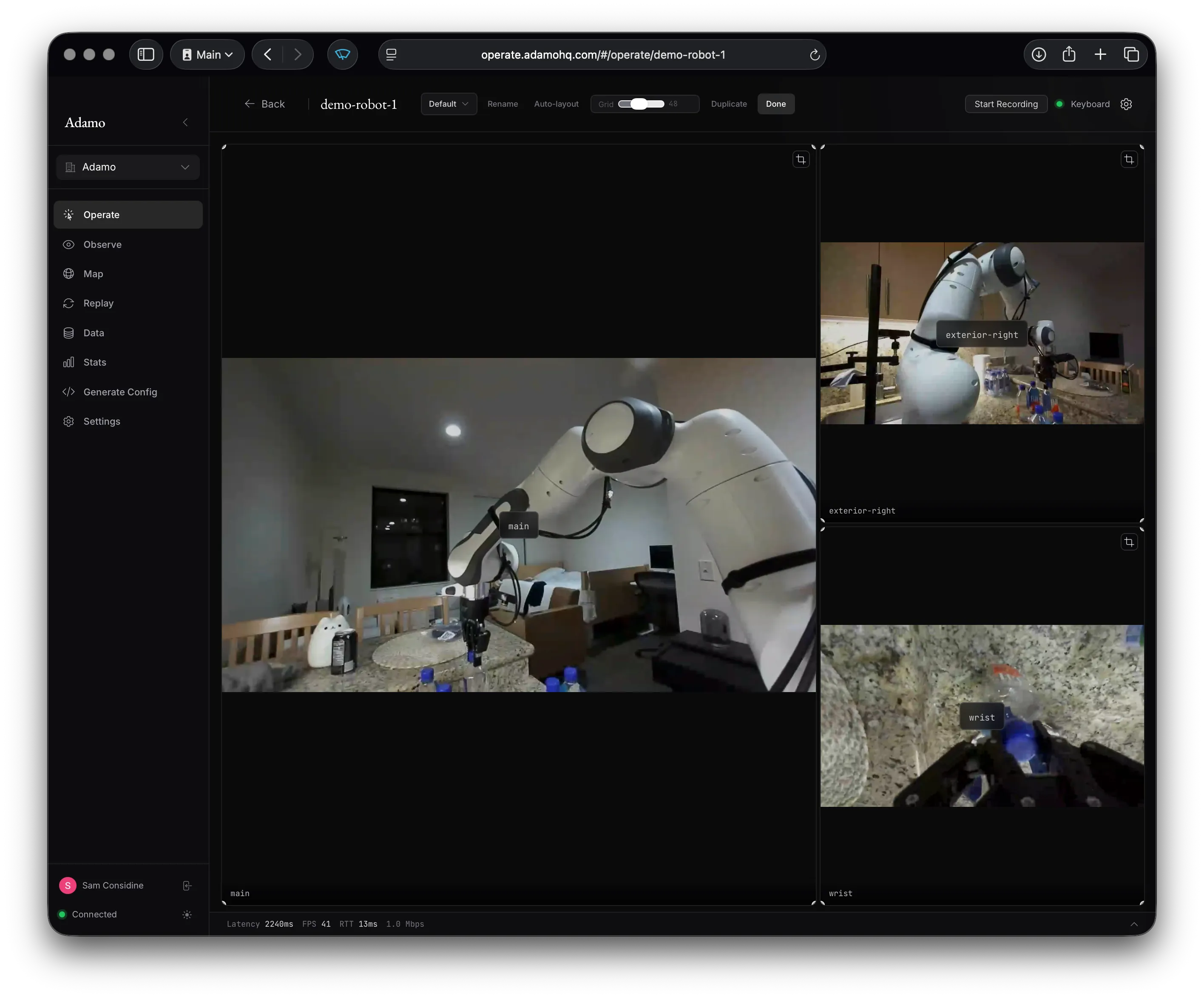
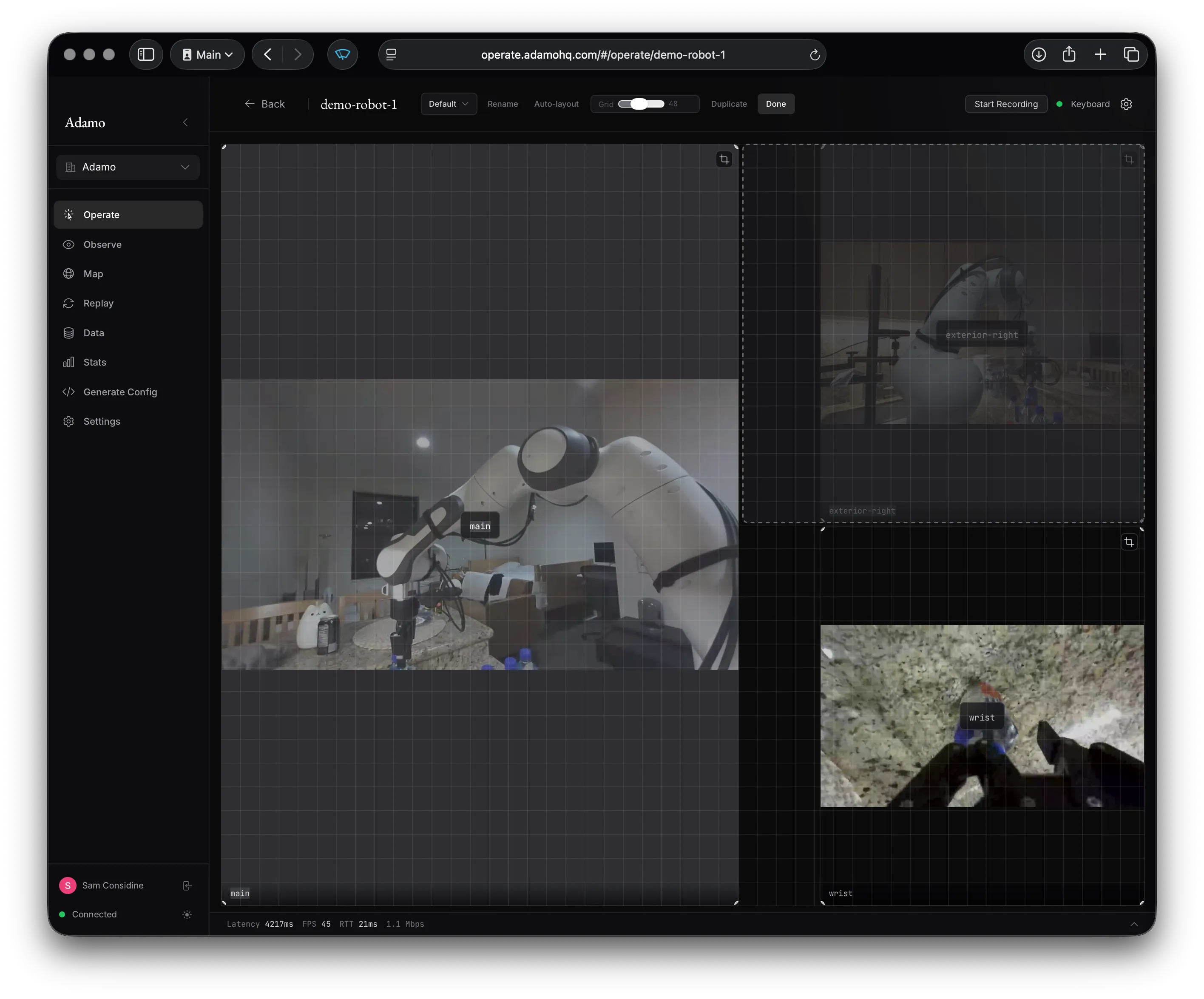
Section titled “Layouts”Layouts control how camera panels are arranged in the grid. You can create multiple layouts and switch between them.
Editing Layouts
Section titled “Editing Layouts”Enter edit mode from the layout toolbar. In edit mode you can:
- Drag panels to reposition them on the grid
- Resize panels from corners and edges
- Crop panels to show a sub-region of the video
- Adjust grid fineness (12 to 96 columns) for precise placement
Unplaced cameras appear as buttons you can click to add them to the layout.
Switching Layouts
Section titled “Switching Layouts”Switch layouts from the toolbar dropdown, with a gamepad button binding, or with voice commands (“next layout”, “layout X”).
Observe Mode
Section titled “Observe Mode”Observe mode (/observe) shows the same camera grid and layouts but without any control capabilities. Use this for monitoring without the risk of sending accidental inputs.
Recording & Replay
Section titled “Recording & Replay”Start a recording from the teleoperation view using the record button in the header. A red indicator and duration timer show that recording is active.
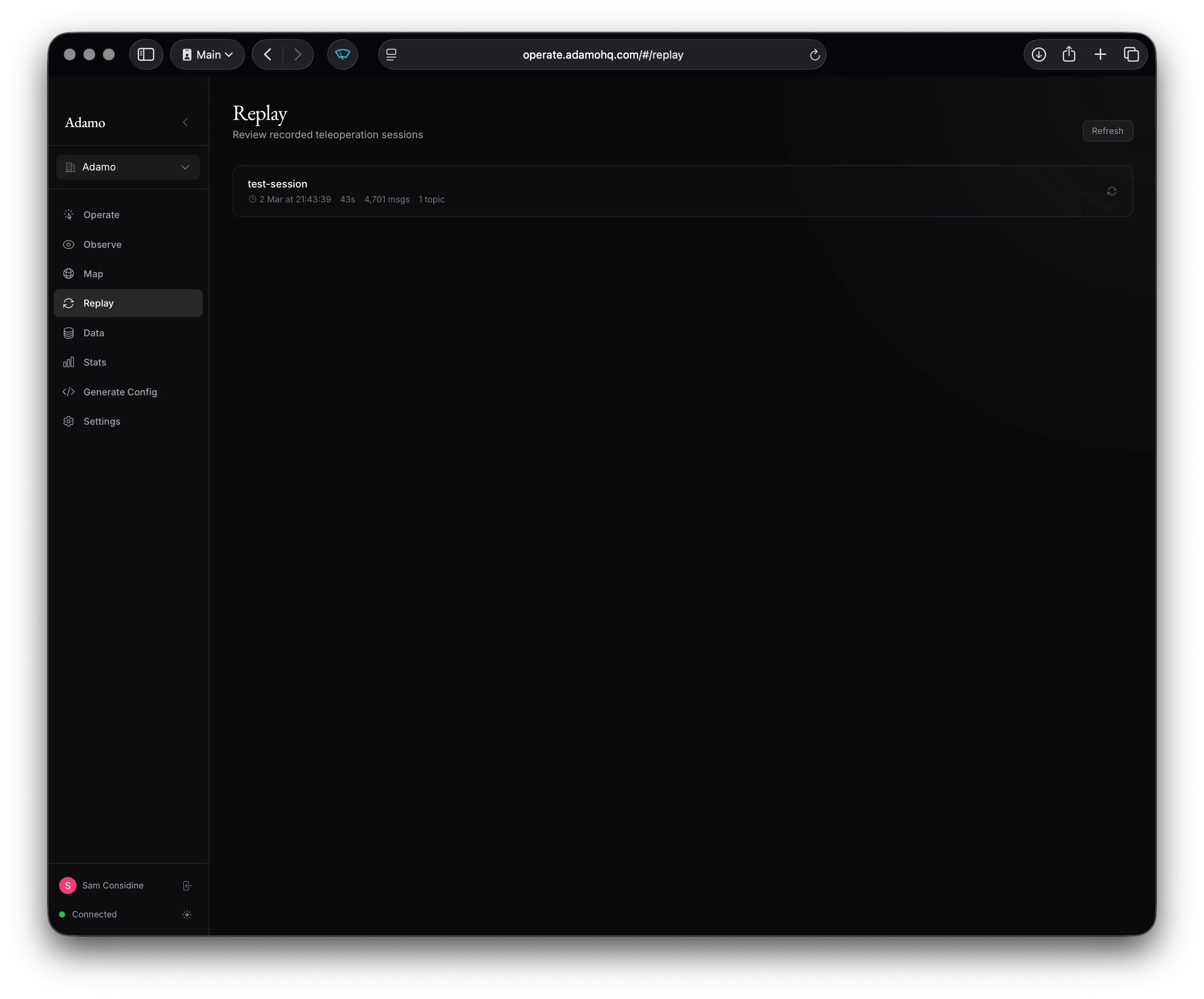
Recorded sessions appear on the Replay page (/replay) where you can play back video with transport controls (play, pause, seek) and a timeline scrubber.
Task List
Section titled “Task List”For labelling data collection, the teleoperation view can show a task list — named tasks you mark as you perform them. Enable it under Settings (⚙) → Tasks → “Show task list”; a panel then appears in the top-left.
- Sets and tasks — organize tasks into ordered sets. Add or remove them from the panel; the
⋯menu has New task / New set / Delete set. - Select a task — pick the one you’re about to do. The panel shows the active set and task.
- Start / stop — press the panel button, the
Rkey, or (in VR) the bound controller input (default: left stick down). While active the task is marked; in the headset a label is pinned to the top of your view. - Auto-progress (Settings → Tasks) — after each stop, automatically advance to the next task in the set, so you can capture a set in order with one button. On by default.
Each start/stop publishes a Zenoh signal your own code can consume — see Task Signals. These signals are independent of video recording.
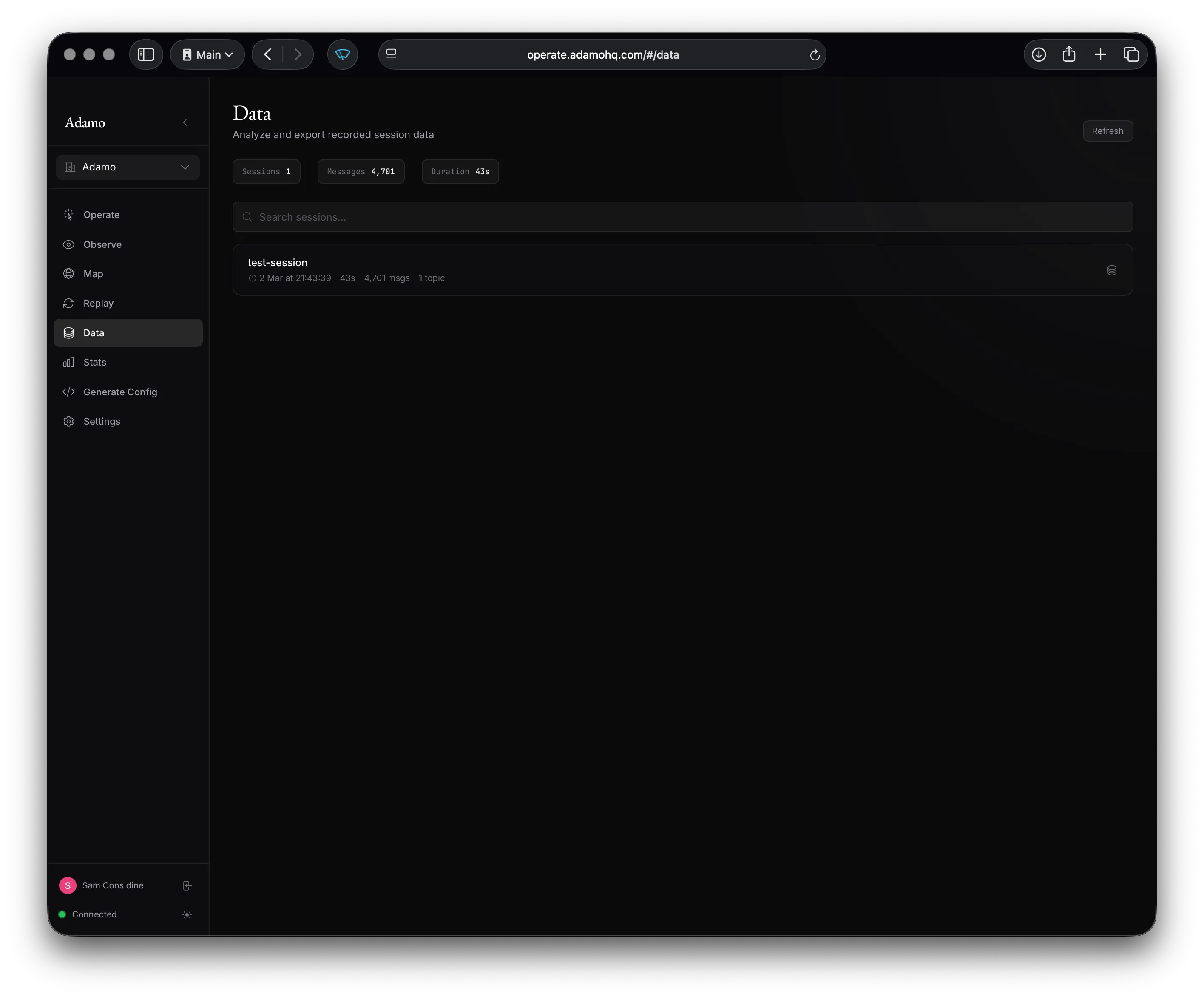
The Data page (/data) lets you explore recorded sessions in detail:
- Topic list — browse recorded topics by category (video, control, sensor)
- Density timeline — visualize message density over time, drag to select a time range
- Data tiles — composable grid of visualizations (video playback, sparklines, message rate, raw message inspector)
- Export — download data as CSV or access it programmatically via curl
The Map page (/map) shows robot locations on a geographic map. Robot markers indicate streaming status. Click a marker to jump to the observe view for that robot.
Fleet Stats
Section titled “Fleet Stats”The Stats page (/stats) shows fleet-wide performance metrics: CPU, memory, latency, temperature, battery, and uptime for each robot. Click a row to expand sparkline charts for each metric over time.
Settings
Section titled “Settings”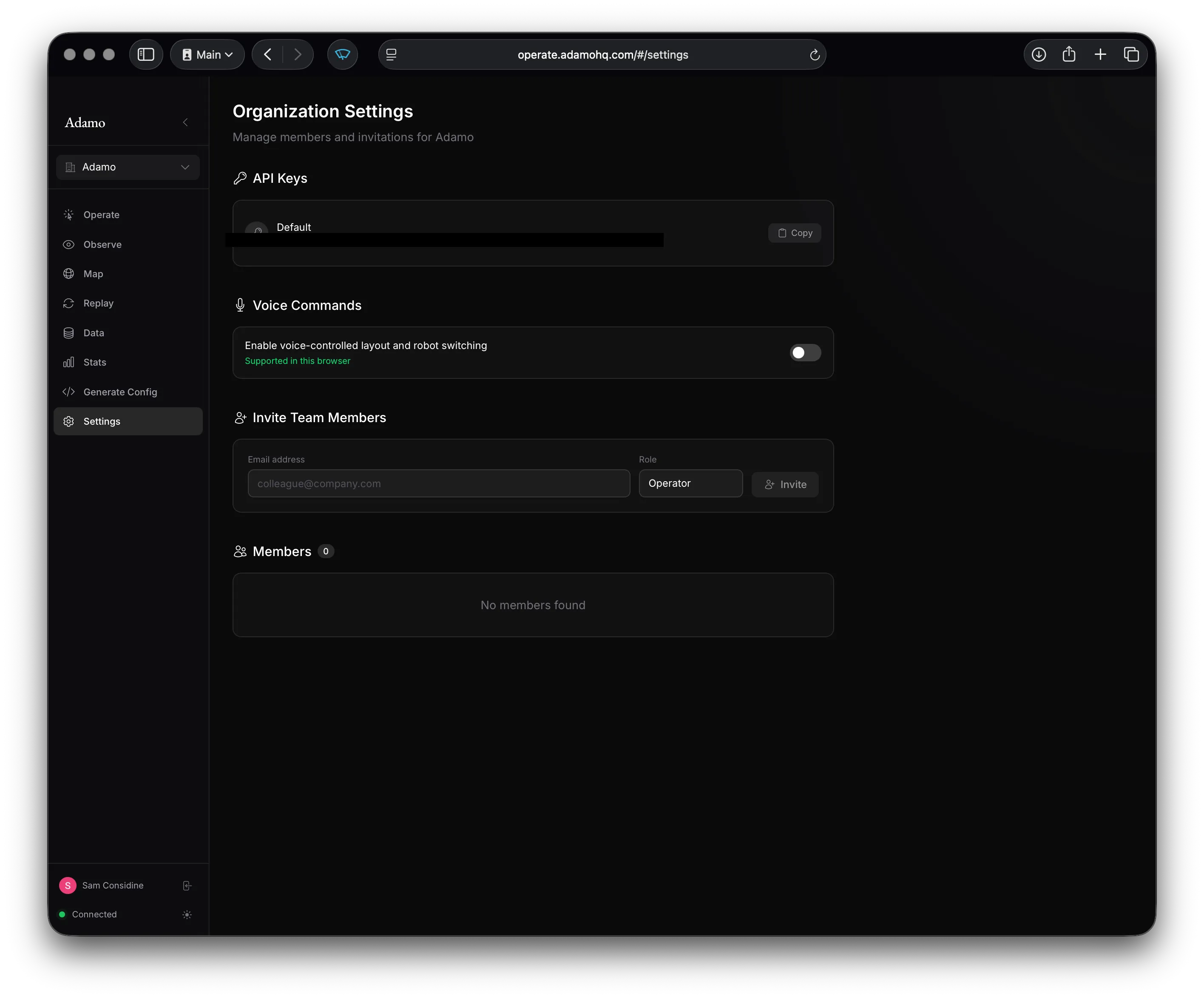
The Settings page includes:
- API Keys — view and copy your organization’s API keys
- Operator Control — require operators to explicitly take and release control
- Team Members — invite members by email with role assignment (owner, admin, developer, operator)
- Pending Invitations — manage sent invites
- Voice Commands — enable/disable voice control for layout and robot switching